The LXDE theme which stands for Lightweight X11 Desktop Environment is a very fast lightweight Dektop Environment for Linux based desktop operating systems. It works great for older computers, netbooks, home servers, tablets, and laptops which has less RAM, and slower CPUs. LXDE can also be a good desktop environment for a gaming computer for playing Linux games since you’ll have more free RAM, and CPU cycles to run intensive games like DOTA 2 which is available for Steam for Linux compared to running Dota 2 on a more heavy desktop environment which takes up more RAM, and CPU, so games have less free RAM and CPU cycles to use to run the game.
I have used LXDE as my main Linux Desktop Environment in Ubuntu/Lubuntu, and other Linux Distros I use.
It also uses less power, and battery life because it is very light weight, and I notice it is more stable than Unity which tends to make my older computer slow down a little bit, and give me error messages.
The PCManFM file manager which comes with LXDE is also very easy to use, and quick when it comes to browsing my files, and folders on my computer.
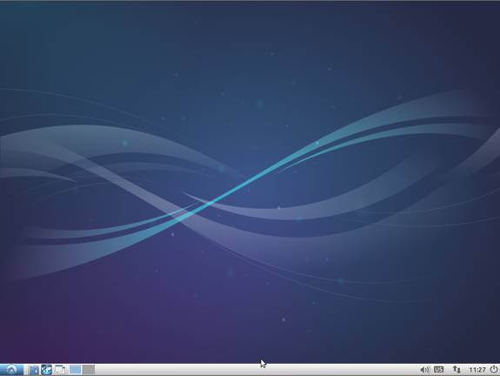
I also like the user interface of LXDE because it is similar to older versions of Windows like Windows 98-XP which have a start menu, task bar, system tray toolbar at the bottom of the screen. Closing, minimizing, and maximizing windows in the LXDE desktop environment is also very easy to do since it has close, maximize/restore, and minimize in the top right corner of each Window like most desktop based operating systems like Windows and Mac.
I think the LXDE Desktop Environment is one of the most easiest desktop environments for new Linux users to learn because it has a launcher on the bottom left of the screen, and when they click on the launcher, the shortcuts to the programs are all categorize by type like Accessories, Graphic, Internet, Games, sound and video, system tools, preferences, and Office.
There also is a logout shortcut to launch the logout program to logout, shutdown, sleep, restart, hibernate, and restart a Linux Computer.
Changing the colors, and theme of the window, taskbar, and the desktop background is also pretty simple.
The best way to try out LXDE is by using a Lubuntu live disc to start your computer into Lubntu from the disc. Lubuntu’s desktop environment is LXDE.
You can also learn more about LXDE from lxde.org