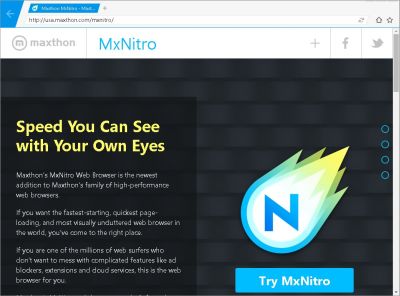
Maxthon Nitro is a very simple to use basic web browser for Windows computer. The user interface of Nitro is very easy to use with just the basic buttons like back, navigational bar, bookmarks, home, tabs, new tabs, and bookmarks which are helpful for quickly and easily browsing the web on a desktop or laptop computer. YouTube, and other sites run pretty well on Maxthon Nitro even on my older computer with only a 1.86GHz Dual-Core Intel CPU, and 1GB of RAM, or those cheaper desktop computers, netbooks, laptops, and tablets which come with Windows 8.1 with Bing which is typically installed on Intel Celeron, Intel Atom CPU, 1-2GB RAM, 16-32GB storage, 8-11 inch screens, Intel HD onboard video, and a non-upgradeable motherboard where you can’t easily install more RAM, or a faster SSD. I can have multiple tabs open in Nitro without experiencing any noticeable slow down or freezing problems. Switching between tabs and opening new tabs is pretty fast as well in Nitro.
I like the simple design of Maxthon Nitro with the big back button, and the forward buttons which only appears when I click the back button. This browser also use very little screen space to display the tabs, address bar, buttons, and navigational buttons, so you can see more of the website even when the web browser is not maximized. There is also no title bar at the top of the browser, and status bar at the bottom of the browser which use up screen space, so Nitro is a good web browser for smaller sized low resolution screens where there is not a lot of free screen space on a small low resolution screen.
The navigational address bar is also very long, and it is also the search bar to search with Google. Combining the navigation and search bar makes typing in links, and searching the web faster because you do not need to move your mouse cursor to the left to enter in a website address, and you don’t need to move your mouse cursor to the right to search the web with Google because they both are combined in the same text box.
Clicking the Home button on the right of the address bar brings will load Google.com which is Nitro’s homepage. I think external programs like installer programs can’t change the homepage easily like Internet Explorer, so I don’t have to worry about another program changing my homepage on Nitro browser. The Star icon on the far right of the navigational bar is the bookmark menu which I can press to add the current website I am on to my bookmarks in Nitro. I can also make a folder to organize my bookmarks by dragging them to my new folder I created, and I can also click on Bookmarks to open bookmarks. I can also rename, delete, and edit bookmark links by right-clicking on a bookmark with my mouse.
The address bar has a copy button, and paste and go button for quickly copying links, or pasting in links to go to sites. The Address bar also shows you a list of bookmarks to YouTube, Google, Amazon, Bing, Yahoo, Hotmail, Facebook, Twitter, and Gmail, so you can click on a bookmark to quickly go to one of the sites listed in the navigational bar when you click on it.
Nitro does not has a lot of extra unneeded features like autofills, so it is very fast because there is no extra unneeded features which slow it down. The features which Maxthon Nitro has are tabs, back and forward website navigation buttons, navigation address bar, bookmarks, file downloading, printing websites from right-click menu, stop, and refresh button. Maxthon Nitro also supports HTML5 videos on YouTube, and JavaScript, CSS, and HTML based websites.
Also, as you type in the navigational bar, it shows you a list of websites which you previously visited which match what you are typing for like other web browsers. [continue reading…]