AVG PC Tune Up 2013 is great at tuning up Windows automatically and quickly after you installed it on your Windows computer. It is very easy to use. After installing AVG PC Tune Up, Tune Up will scan your computer for registry errors, junk files, un-optimize settings, fragmented files on your hard drives, defrag your registry, and after the scan, it will repair your computer, so it works at its best speed and settings.
PC Tune Up user interface is very easy to use, and you just use your mouse to click on buttons, and no typing is required to do any tasks. Its user interface is organize in tabs to make finding tasks to do simple, and fast by just reading the tabs, and clicking on the tab you want to use to perform a task like gaining back space on your hard drive, making your computer faster, fixing a problem, and changing the way Windows look visually.
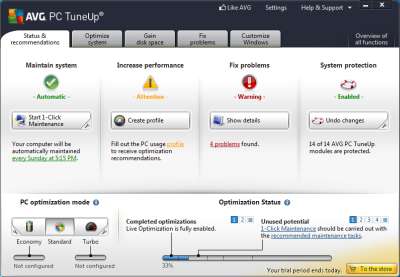
The Main tab called Status and Recommendation is the main tab which you use to speed up your computer, perform maintenance tasks, fix a problem with Windows, and System Protection.
At the bottom of the main tab, you can turn on Turbo Mode, Economy Battery saving mode, and see a line graph which will get fuller as you fix problems, turn on turbo, disable startup programs, and deactivate programs in Windows with PC Tune Up.
You can use AVG PC TuneUp to turn off un-needed Windows animations, visual effects, and background programs and services for maximum performance.
The Program Deactivator, and Startup Manager in AVG TuneUp is very easy to use at stopping programs from running during startup, and when you use your computer, so you have more free RAM, and CPU resources for computer games, web browsing, office work, and other computer tasks you do. There is also Turbo Mode in AVG Tune Up which will disable all programs which you do not need to run Windows, so you’ll experience a speed increase after you turn on Turbo. There is also a Power saving mode which is like Turbo, but optimize your computer to use less power which is useful for tablets, and laptops which run off the battery.
The Hard Drive Defrag in AVG Tune UP is pretty good. I like that I can set AVG Tune Up to turn off my computer after defrag is done. [continue reading…]