by Johnson Yip
on October 30, 2013
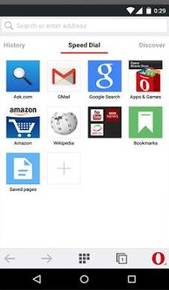
Opera for Google Android is my main web browser I use in Android because it is fast, simple, feature rich and saves me data while making website load faster on slower wireless connection.
I choose to use Opera as my main web browser because it uses very little screen space since it just has one toolbar which is the address bar on a cleanly design minimalistic browser which is packed full of features like Off the Road mode which compresses images, and websites to save me data while making downloads faster. In the settings, you can set the image quality to low to medium to save even more bandwidth, and download websites quicker by reducing the size of the image by compressing them to low to medium instead of high quality pictures.
It is also pretty easy to enlarge the text, zoom in, and out by using pinch to zoom with two fingers, and searches from the address bar are pretty fast when using the address bar to search Google. Scrolling performance, and switching tabs, making new tabs, opening links in new tabs, and closing tabs in Opera is also easy to do, and fast.
Using Opera Off the Road Mode could also save you money if your data plan for your mobile service is limited meaning you can only download 250MB of Data a month. If you use Off the Road mode, you may save money by switching to a lower data limit because you now use less data while web browsing, so you can switch to a cheaper data plan with lower data caps.
Also, a lot of sites see Opera for Android as a mobile web browser, so I am less likely to get the heavier desktop web browser compared to using other web browsers where the web browser is detected as a desktop web browser. The mobile version of a website uses less bandwidth, load faster, have fewer ads, and large pictures, so it uses less bandwidth, and runs faster on mobile phones and tablets compared to the desktop version of the website for desktop PC on a wired or wi-fi internet connection.
[continue reading…]
Tagged as:
google android,
mobile,
mobile web browser,
opera,
opera for android,
opera mobile,
smartphone,
tablet,
web browser
by Johnson Yip
on October 30, 2013


A File Manager App is used to explore the contents of your internal, and external storage memory drives/cards in Google Android. It is similar to Windows Explorer which is used to browse, search for, and manage files in Windows. In Android, you need a File Manager App to install/sideload APK installer files for apps which you downloaded from third-party websites. File Managers are also handy for deleting folders, and files which you no longer need anymore. You also need a File Manager App to copy, and move files to different folders, and external microsd cards. You can also use a file manager to rename files and folders, and search for files and folders by name.
File Manager by Rhythm Software is one of my favorite File Management apps for Google Android because it is fast, simple to use, and stable. When I launch File Manager, it starts up in seconds, and managing files is very simple even on a touchscreen. It has a handy feature called storage analysis to see which files, folders, and apps are using up the most storage, so if I need to make room on Google Android, I know which apps, files, and folders to delete to free up free space to install other apps, and files on Android.
File Manager has List and grid view for file browsing, and built-in text editor, image gallery and swf player. There are also 3 sets of commercial icons for 80+ different file types, toolbar and menu items. [continue reading…]
Tagged as:
file explorer,
file management android,
File manager,
google android,
mobile,
Rhythm Software,
smartphone,
tablet
by Johnson Yip
on October 30, 2013


Clean Master by KS Mobile is my favorite system utility app for getting rid of junk temporary/leftover files from uninstalled Apps, Ads on Apps, Cache files, and empty folders which contains no data.Clean Master also has features for quickly deleting call history, text message and logs for smartphones, and browsing and search history for Google, YouTube, Chrome, and many third party web browsers, and social networking apps.
One of the best reasons to use Clean Master is to maintain your memory card’s free space, so you are less likely to run out of free space when you need it most like when you are downloading files from the internet, downloading and installing apps, recording videos, taking photos, and doing other tasks which use up a lot of memory storage space. Clean Master is a free App, so it is cheaper than buying a new MicroSD memory card to store your personal files, and usually a MicroSD memory card can’t install Apps, and you can only use your phone and tablet’s internal memory to install Apps on Android devices. [continue reading…]
Tagged as:
clean master,
disk cleanup,
google android,
ks mobile,
make android faster,
mobile,
smartphone,
system utility,
tablet