≡ Menu
Epiphany Web Browser for Linux

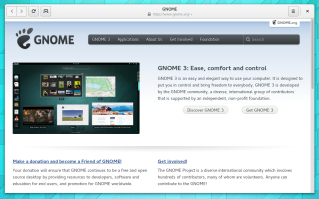
Epiphany Web Browser is one of the fastest and lightest web browsers for Linux. Epiphany is based on the WebKit Web Browser layout engine which is the same web browser engine which Apple Safari, and older versions of Google Chrome uses, so most websites should display correctly in Epiphany because it uses the WebKit Web layout engine used in many other browsers.

Epiphany web browser is a very minimalistic web browser with not a lot of features, and a very simple user interface with just back, forward, website address text box, settings, scroll bar, title bar. and close button. The tab bar is also hidden when only one tab is open, and the tab bar appears when two or more tabs are open. It is a nice web browser for using on a smaller low resolution monitor because Epiphany use less screen space than other web browsers.

Epiphany is now called Web in GNOME Linux Desktop environment. It is also bundled with GNOME. [continue reading…]

0 comments

Sometimes wireless routers like 802.11N WiFi routers are slow because their settings like channel is not the best channel to be on because a lot of other wireless routers are on the same channel. Your Wireless router may also not be placed in a good room in your home which is causing some rooms to have a weak signal or no signal at all. It can also be your computer, laptop, or tablet which has a weak wireless adapter which is causing your wireless signal to your device to be weak and slow.

Changing Wireless router’s Settings can improve a routers speed and range.

The first thing you should do is unplug your router and modem from your home’s electrical outlet, and wait a few minutes for them to fully restart. I once had a router where I couldn’t access the settings page for the Router with a web browser until I restarted the router by unplugging it from the wall and plugging it back in.

Restarting your modem and router may fix connection problems. But, restarting is not a permanent solution to your router disconnections and slow speed problems in most cases.

You first need to login to your router by using a web browser, and entering in the address of the network router address which you can find in your router’s user manual, and sometimes on the bottom of your router.  Your router may come with Router PC software for logging into a router to make changes to its settings. You can usually learn how to login to your router by reading the instruction manual which came with your router, or your router’s website for your specific brand and model of router,

In the settings page for your router, you can change the wireless router, change the mode, and power output of the antennae to a higher power output for faster performance. Turning off power saving options if your router has a power saving option may make your router run better, but use more power. Some routers also have a Gaming mode  option which you can turn on. Gaming Mode is designed for making your router better when gaming on online games.

[continue reading…]

3 comments


I have been using the ASUS CHROMEBOX-M004U Desktop PC as my main desktop computer for a few months now, and it works great for most of the tasks I do on a daily basis like web browsing, writing articles, blogging, watching video, streaming videos from sites like YouTube, e-mail, word processing, and listening to music. It is also very affordable. I can buy one new for $159.00, or $139.00 or less Used on Amazon or eBay.

This Chromebox is cheaper than the Chromebook which cost $200-300. I can also choose my own monitor, USB keyboard, and mouse, speakers, and add more RAM, or replace broken RAM in the future which may not be possible with some Chromebook laptops where the RAM is built-into the laptop, and is non-removable.

What I like most about the Chromebox is that it is affordable, and I can use a square shaped 19 inch monitor with a 1280 x 1024 resolution which makes viewing websites, and documents easier because the monitor’s resolution and height is higher. I also like that I can use a two button mouse with left and right click buttons which is easier than learning how to use the Chromebook’s touchpad where you need to use finger gestures to go back a page, or right click. A full size USB keyboard is also very nice to type on because the buttons, are more spaced out.

What I like about desktop computers is that there is no battery to charge, and I can easily repair, or replace parts like RAM, SSD, and accessories like a monitor, usb keyboard, and mouse, and speakers.

The Chromebox seems very easy to maintain because it uses a SSD storage drive, and its RAM is replaceable. It also does not get very hot, so there is less chance of heat damage from over heating.

Asus Chromebox desktop is very stable. It runs fast even when multiple browser tabs, and apps are open. It also rarely crashes when I use it for surfing the web, watching video, and doing other tasks. It starts up, and shutdowns fast as well. It can play HD 1080P video from websites like YouTube, Dailymotion, Vimeo, and news sites without any slowdown problems like video stuttering. Chrome also has Adobe Flash Player built-in, so you do not need to install it yourself to play flash video, and games on websites. Websites also load very quickly, and I can use this Chromebox with Wired Internet by connecting a wired Ethernet cable from my modem or router to the Chromebox if I choose not to use Wi-Fi on the Chromebox. Wired internet connections are generally more reliable, and sometimes faster because Wired Ethernet doesn’t suffer from interference, low bandwidth limits like 54Mbps for 802.11G wireless, and poor range problems like Wi-Fi wireless internet.

Chrome OS automatically protects itself from viruses, and automatically updates itself to fix security problems, add new features, and make improvements to Chrome OS.

[continue reading…]
0 comments